One organization, one workspace per website
An organization holds your plan, billing and team. Each workspace is one website you track. Usage limits are shared across the organization.
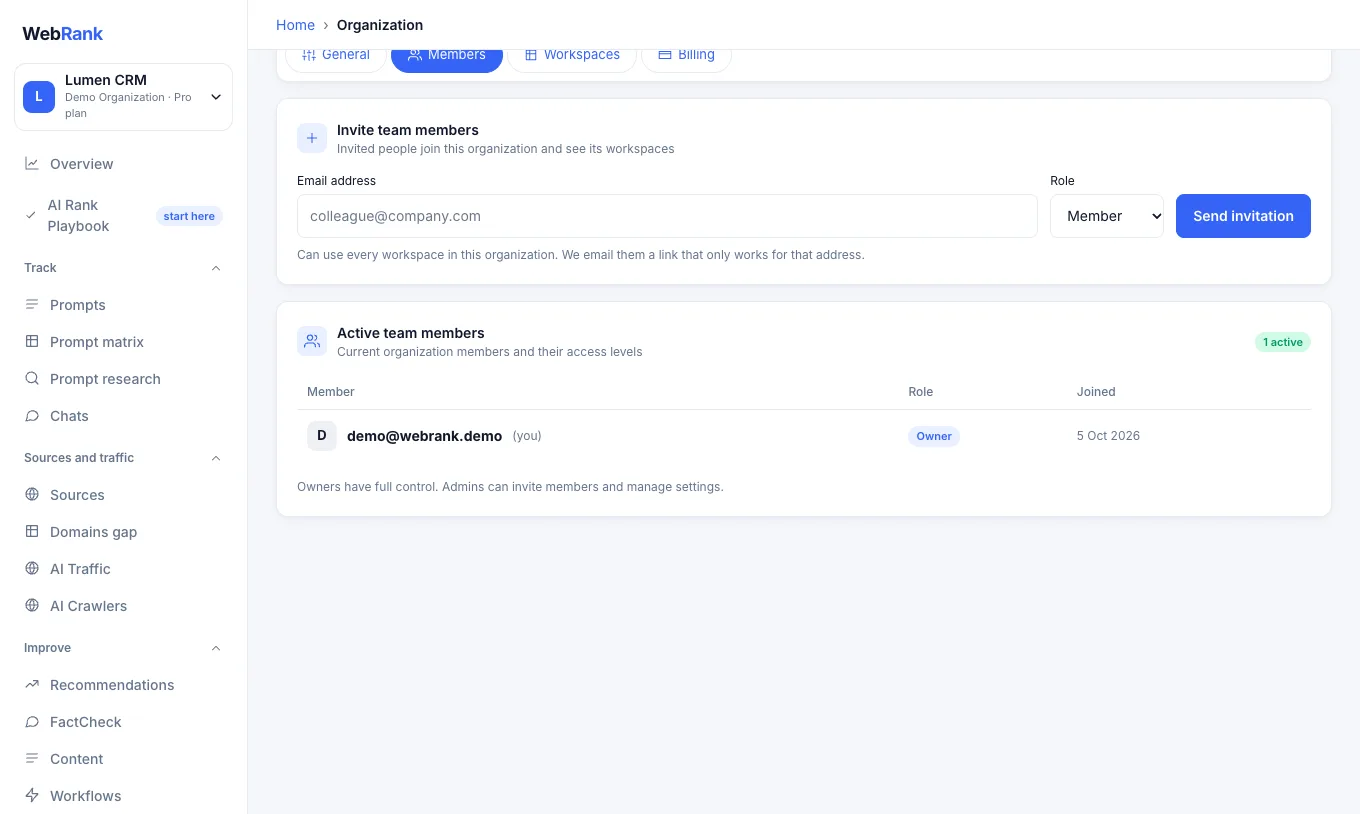
Screenshot and illustration use sample data.
Teams and Workspaces
What is Teams and Workspaces?
In WebRank an organization is your account and a workspace is one website you track. Every plan includes unlimited workspaces and team members, with three roles: owner, admin and member. Usage limits are shared across the organization, not per seat.
By the WebRank team · Updated
Key terms
- Organization
- Your account: plan, billing and team.
- Workspace
- One website you track.
- Owner
- Full control, including billing.
- Admin
- Manages members, settings and workspaces.
- Member
- Uses the product.
Why does it matter?
Seat-based pricing punishes collaboration and makes agencies think twice before inviting a colleague. Metering what costs money, the AI answers, leaves everything else open.
Separate workspaces keep clients apart, so one client's prompts, competitors and reports never mix with another's.
What you can do
Unlimited workspaces and seats
A plan includes unlimited workspaces and team members.
Roles
Owner (billing, roles, everything), Admin (members, settings, delete workspaces) and Member (use dashboards, prompts, content and reports).
Invite by email
Invitations work only for the address they were sent to, and can be resent or cancelled.
Built for agencies
One workspace per client, with reports and share links for each.
How it works
How does Teams and Workspaces work?
Create a workspace for each website. Invite teammates by email from Organization, Members, choosing a role. The invitation works only for that address and can be resent or cancelled. Invited people can use every workspace in the organization.
The owner manages billing and roles. Admins invite members, change organization settings and delete workspaces. Members use dashboards, prompts, content and reports. One shared usage allowance covers all workspaces.
- 01Create a workspace per websiteAdd the client's site.
- 02Invite your teamChoose a role.
- 03Report to clientsShare links and PDFs.
Illustration with sample data.
An agency has one organization and a workspace per client. A junior joins as a member and sees every workspace. The owner keeps billing to themselves and, when a client leaves, an admin deletes that workspace.
DoTips for getting it right
- Create one workspace per client or brand.
- Give most people the member role.
- Keep the owner role with someone who handles billing.
- Remember the allowance is shared across all workspaces.
KnowWhat it cannot do
- –Because the allowance is shared, one heavy workspace can use most of it.
- –There is one owner per organization.
What are the common mistakes?
Who uses Teams and Workspaces?
What you will be able to say
Questions people ask
Do seats cost extra?
No. Seats and workspaces are not charged. Only AI answers and other usage are metered.
What can a member do?
Use dashboards, prompts, content and reports.
Who can delete a workspace?
Owners and admins.
How do invitations work?
By email, and each link works only for the address it was sent to.
Is usage shared?
Yes, across all workspaces in the organization.
Reports and Shared Dashboards
White-label PDFs, read-only share links and weekly emails for clients and bosses.
Pitches
Audit any company's AI visibility in about 30 seconds, to win it as a client.
API, CSV and Looker Studio
Your data is yours: REST API, CSV and JSON exports and a Looker Studio connector.
Find out what AI says about your brand
Start a 3-day free trial with every feature open. Cancel before it ends and pay nothing.
Start free trial