Use your AI visibility data in your own tools
Everything WebRank collects can leave WebRank. Read it through the REST API, export it as CSV or JSON, or connect it to Looker Studio.
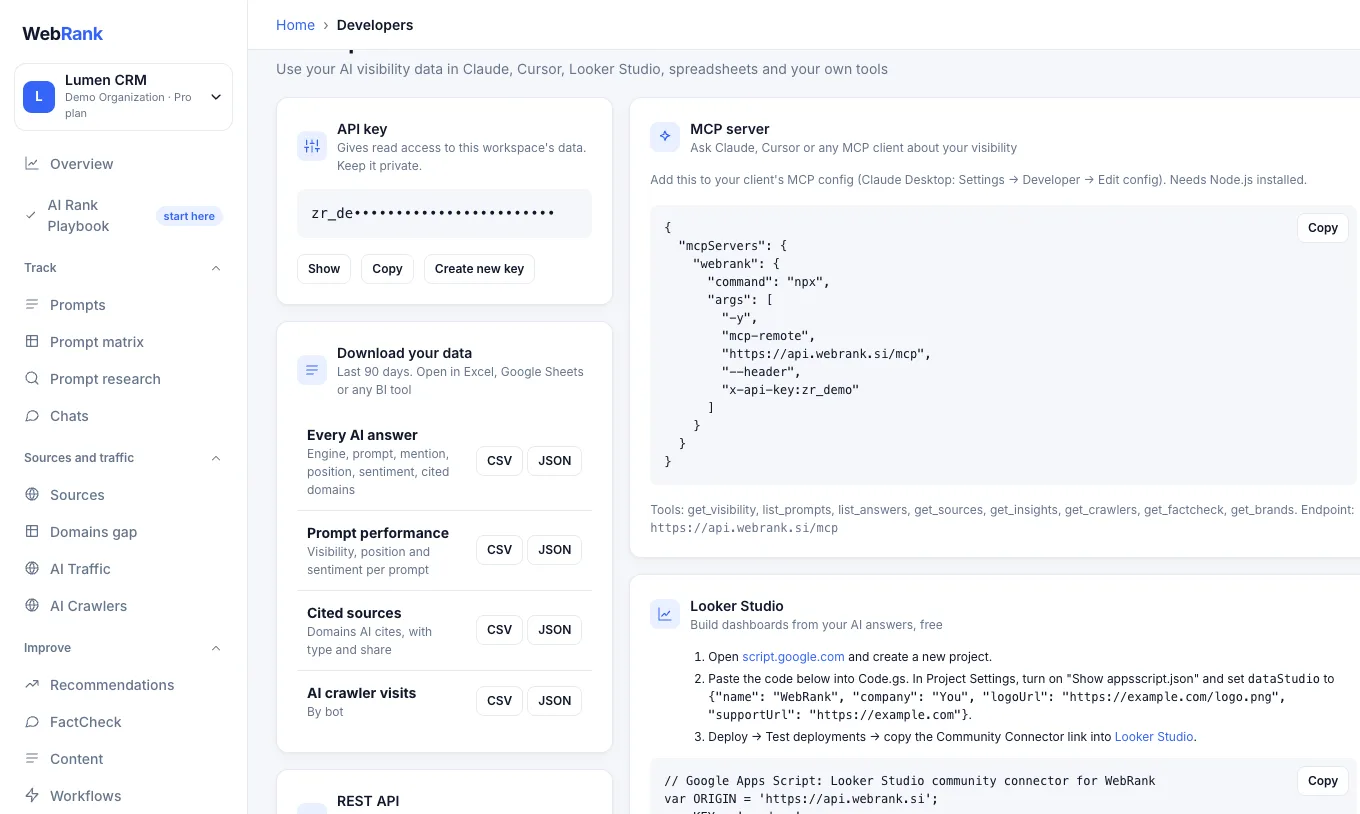
Screenshot and illustration use sample data.
API, CSV and Looker Studio
What is API, CSV and Looker Studio?
The WebRank API gives read access to everything the product collects: visibility, prompts, answers, sources, brands, crawler activity and the latest AI Mistakes check. You can also download flat CSV or JSON files and connect a Looker Studio report, so your data is never locked inside the dashboard.
By the WebRank team · Updated
Key terms
- API key
- A secret that gives read access to one workspace.
- Endpoint
- A URL that returns a type of data.
- Flat rows
- One row per answer, ready for BI tools.
- Connector
- A script that feeds Looker Studio.
Why does it matter?
Teams already have reporting tools. Forcing them to retype numbers is how data goes stale. An API and exports let AI visibility sit next to SEO, sales and revenue data.
Owning your data also matters for trust. If you ever leave, you take it with you.
What you can do
REST API
Endpoints for visibility, prompts, answers, sources, brands, crawlers and the latest AI Mistakes check, with a key per workspace.
CSV and JSON
Download flat rows for spreadsheets and BI tools.
Looker Studio
A ready-made Google Apps Script connector for live reports, or a CSV for a quick start.
Key control
Create a new key any time if one leaks.
How it works
How does API, CSV and Looker Studio work?
Each workspace has a read-only API key on the Integrations page. Send it in the x-api-key header, or as a Bearer token, to https://api.webrank.si. Endpoints include /v1/visibility, /v1/prompts, /v1/answers, /v1/sources, /v1/brands, /v1/crawlers, /v1/factcheck, /v1/rows for one flat row per answer, and /v1/export for CSV or JSON.
For Looker Studio, download a CSV for a quick start or paste the ready-made Google Apps Script connector for live data. If a key leaks, create a new one, which stops the old one working everywhere.
- 01Copy your keyFrom Integrations.
- 02Call the APISend it in the x-api-key header.
- 03Connect your BI toolLooker Studio, Sheets or your own code.
Illustration with sample data.
A script calls /v1/visibility?days=30 each Monday and writes the numbers to a spreadsheet next to organic traffic. Looker Studio reads /v1/rows for a chart of visibility by assistant.
DoTips for getting it right
- Treat the key like a password.
- Use /v1/rows for BI tools and /v1/visibility for summaries.
- Create a new key if one ever leaks.
- Do not post connector scripts publicly, because they contain your key.
KnowWhat it cannot do
- –The key is read-only and cannot change anything.
- –A wrong or missing key returns HTTP 401.
What are the common mistakes?
Who uses API, CSV and Looker Studio?
What you will be able to say
Questions people ask
Is the key read-only?
Yes. It gives read access to that workspace's data.
What formats can I export?
CSV and JSON.
How do I connect Looker Studio?
Download a CSV, or paste the ready-made Google Apps Script connector from the Integrations page.
What if my key leaks?
Create a new key. Anything using the old one stops working until you update it.
Where is the documentation?
In the docs: API, MCP and Looker Studio.
Find out what AI says about your brand
Start a 3-day free trial with every feature open. Cancel before it ends and pay nothing.
Start free trial