AI Traffic (Google Analytics)
Visibility tells you whether assistants mention you. AI Traffic tells you whether people then visit. It reads your Google Analytics 4 data and shows the sessions that came from AI assistants such as ChatGPT, Perplexity, Gemini and Claude.
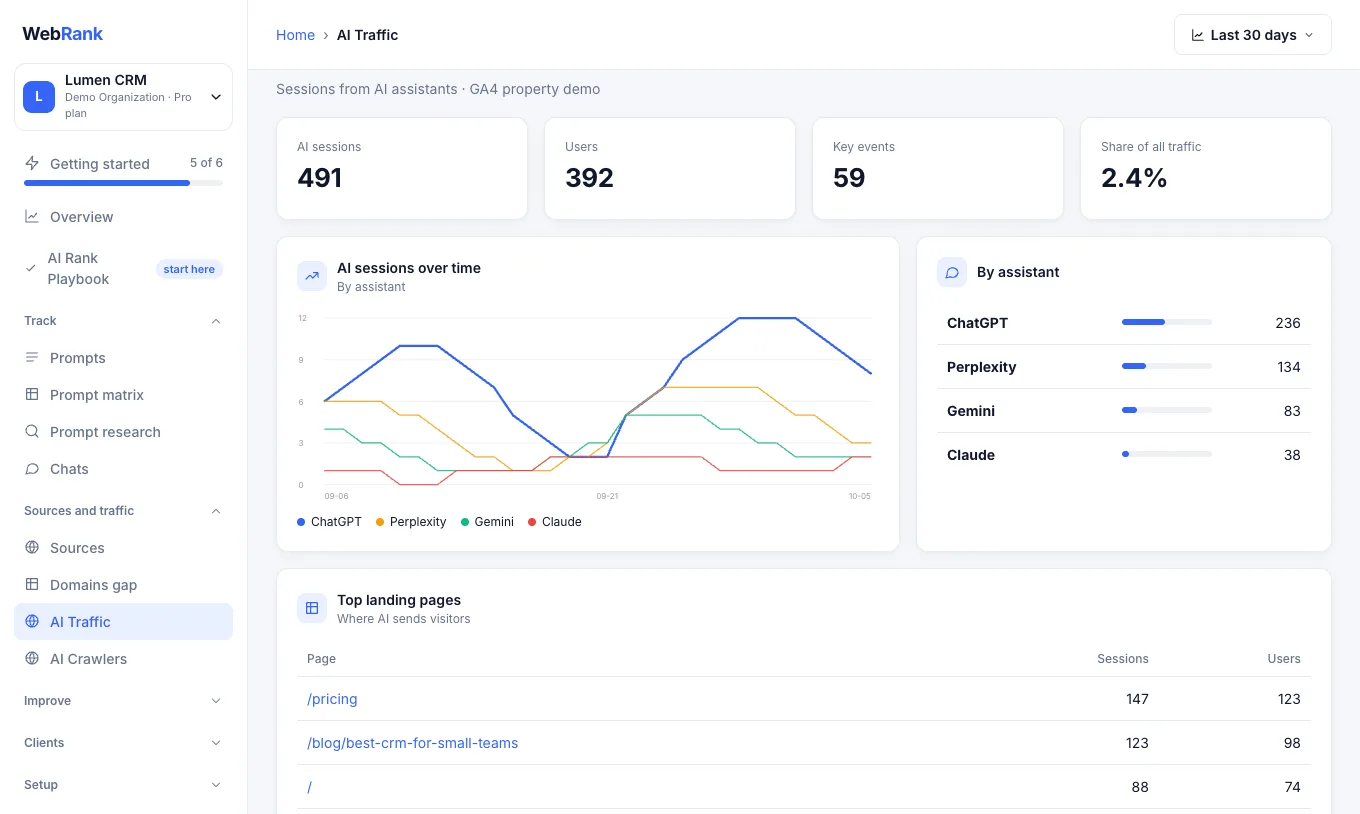
What you will see#
- AI sessions, users and key events from AI assistants, and their share of all traffic.
- A chart of sessions over time, split by assistant.
- The landing pages where AI sends visitors, so you know which pages earn recommendations.
Connect Google Analytics#
- Open AI Traffic and choose Connect account.
- Sign in with the Google account that can view your Analytics property, and approve the read-only access.
- Back in WebRank, choose the GA4 property that measures your website and press Save.
- The report fills in within a minute.
What access WebRank asks for#
WebRank requests the analytics.readonly permission only. It can read the numbers in your property and the list of your properties so you can pick one. It cannot change anything in Analytics, and it does not read individual visitors. The access credential is kept in our database (which our cloud provider encrypts at rest) and is used only to fetch this report.
To stop sharing, open AI Traffic, choose Manage connection and then Disconnect. This revokes the access with Google and deletes the credential from our systems.
Note: This connection is currently going through Google's app review. Until it finishes, Google may show a notice that the app is not yet verified when you connect. Everything else in WebRank works without it. If you would like help, write to support@webrank.si.
Troubleshooting#
- No properties listed. The Google account you used cannot see your site's property. Connect again with the account that owns it.
- Numbers are zero. AI traffic is a small share for most sites at first. Try a longer date range, and check that the property you chose is the one tracking this website.
- Wrong property. Open Manage connection and pick another property.
Related#
Was something unclear or missing? Tell us. Last updated 2026-10-06.